
Skip to content

Support: Replies in the order messages arrive

All prices in US dollars, for the US and Canada

[email protected]

Customer support

Sonix IPTV support and quick fixes

Most problems have a two-minute fix. Find what you see on screen below and try the steps in order. If it is still not right, message us with the details listed further down and a person will take it from there.

  • Replies in the order messages arrive

Quick fixes

What do you see on screen?

The picture keeps buffering

  1. Pause large downloads and video calls on other devices.
  2. Switch the TV or stick to your 5 GHz Wi-Fi, or connect a cable.
  3. Restart the router, wait for the lights to settle, then restart the device.
  4. Test the speed next to the TV and send us the result if it is under 10 Mbps.
“Login failed” or “invalid details”

  1. Delete the details and type them again slowly. They are case-sensitive.
  2. Check there is no space at the end of the username or password.
  3. Make sure you chose the same login type we sent (login or playlist link).
  4. Still failing? Send us a photo of the screen; do not send your password.

The guide is empty

  1. Close the app completely and open it again.
  2. In the app settings, look for “update guide” or “refresh EPG”.
  3. Wait a few minutes: the guide downloads after the channel list.
  4. Some international channels do not provide guide data at all.

One channel will not play

  1. Try another channel in the same group to see if it is just that one.
  2. Wait a minute and try again: broadcasts sometimes restart.
  3. Tell us the exact channel name and when it stopped. We will check it.

The app freezes or closes

  1. Unplug the device for ten seconds, then start it again.
  2. Check for an update to the player app in your device’s app store.
  3. On Fire TV and Android TV, clear the app’s cache in Settings → Applications.
  4. If it keeps happening, tell us the app name and your device model.

Sound is out of sync

  1. Change channel and come back. This often realigns the sound.
  2. Turn off any sound “enhancement” or delay settings on a soundbar.
  3. Some player apps have an audio delay setting; try a small adjustment.
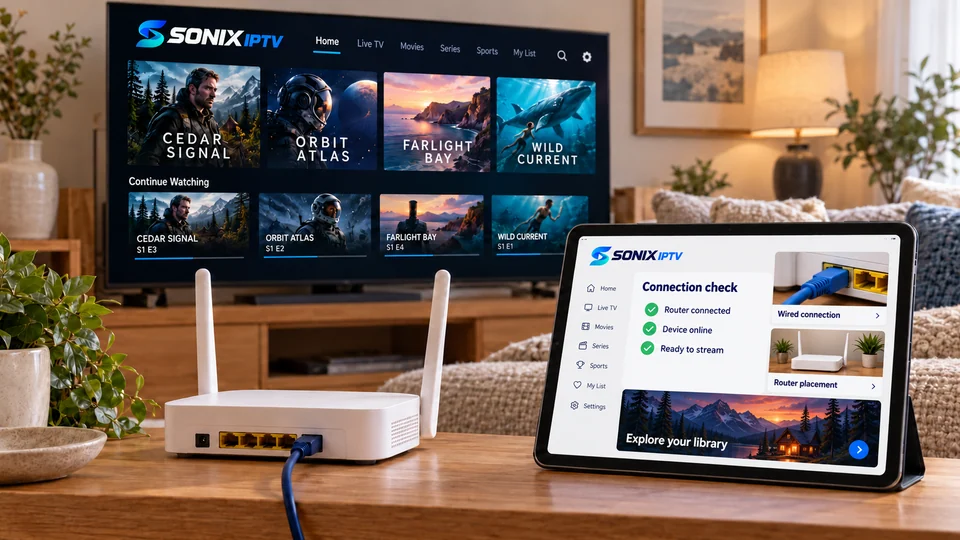
A home router and tablet showing a completed network connection check.

Home network

Most buffering starts between the router and the TV

Before you assume the service is the problem, it is worth checking the last few meters of your connection. These four things fix the majority of cases we see.

  • Speed where you watch. Test next to the TV. A big drop from the router means distance or walls.
  • 5 GHz over 2.4 GHz when the TV is within a room or two of the router.
  • A cable, once. If buffering vanishes on a cable, Wi-Fi is the cause.
  • The evening rush. Pause game downloads and cloud backups during the game.

Still stuck?

Send us these four things

With these details we can usually solve it in the first reply instead of asking questions back and forth.

  1. Your device and model

    For example “Fire TV Stick 4K Max” or “Samsung 2021 smart TV”.

  2. The app you are using

    The name shown under the app icon.

  3. A photo of the screen

    Especially if there is an error message. Never include your password.

  4. What you already tried

    So we do not ask you to restart the router a second time.

Wider outages

If a problem on our side affects many customers, we fix it as a priority and reply to everyone who wrote in. You do not need to send repeated messages.

New customer?

Setting up for the first time? The installation guide walks through each device step by step.

Contact support

Reach a person

Email

[email protected]

Best for refunds, receipts and anything you want in writing.

Send an email

Support hours

Replies in the order messages arrive

You get a written reply on WhatsApp or by email, never an automated dead end.

Try the quick fixes
Chat on WhatsApp