
Server, username and password
The most common type. In many apps it is called “Xtream Codes login” or “login with account”. You type three fields.
Activation
After your payment is confirmed, we send your login details and the steps for your device. This page explains what you will receive, where it goes and how to keep your account safe.
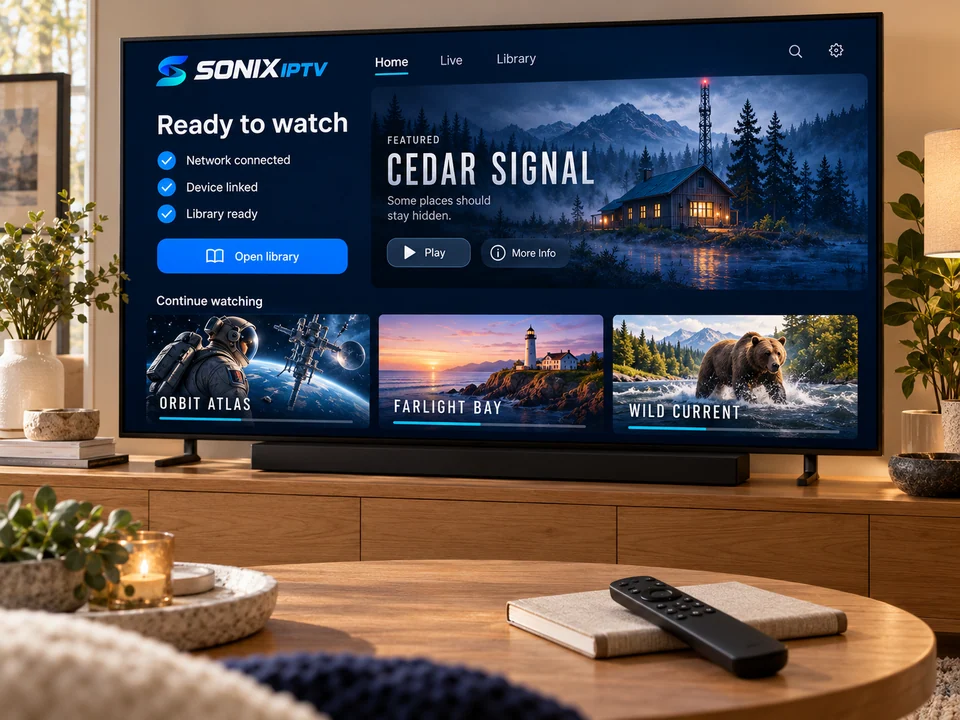
What you receive
IPTV player apps accept details in different ways. We send the type that suits the app we recommended for your device, so you only need one.
The most common type. In many apps it is called “Xtream Codes login” or “login with account”. You type three fields.
A single web address (often called an M3U link) that you paste or type into the app. Handy on computers and some smart TVs.
Some TV apps and set-top boxes show a device code (or MAC address). You send it to us, and we link your plan to that device.
Where it goes
| Device | Where to enter it | Tip |
|---|---|---|
| Fire TV Stick / Fire TV | Open the player app → add user or playlist → choose the login type we sent. | Use the Fire TV phone app as a keyboard to avoid typos. |
| Samsung or LG smart TV | Open the player app from the TV’s store. Some show a device code to send us; others ask for a login. | Write down the device code exactly, including dashes. |
| Google TV / Android TV | Open the player app → add playlist or login → enter the details. | Restart the device once after the first login. |
| Apple TV, iPhone, iPad | Open the player from the App Store → add playlist or account. | On iPhone you can paste the details instead of typing. |
| Android phone or tablet | Open the player from Google Play → add user → paste the details. | Use Wi-Fi at home to save mobile data. |
| Windows or Mac | Open a desktop player → add the playlist link or login. | A cable connection gives the steadiest picture. |
Full step-by-step directions for every device are in the installation guide.
Keep it safe
Check the sender
Your details only ever come from WhatsApp +212 781 768 546 or [email protected]. If you receive login details or a payment request from anywhere else, do not use it and let us know.
Activation questions
By WhatsApp or email, whichever you used to order. They come with steps for the device you told us about.
Check your spam or promotions folder for a message from [email protected] first. If it is not there, message us on WhatsApp with the name or number you ordered with.
Your plan length counts from the moment your details are activated, not from when you first message us.
Yes. Enter the same details on the new device. If your app uses a device code, send us the new code and we will update it.
No question matches that yet. Ask us on WhatsApp instead